
Showing posts with label Linux. Show all posts

Thursday, January 15, 2015

Chromebooks, the answer?

Please note: I have edited this post as some felt I was biased against Windows. I have decided to remove the word "Windows" from this post (except for that one <===).

I live in South Africa. South Africa is not America. We don't have the latest tech and the tech we have here it is not cheap. So I understand that schools are looking for inexpensive laptops for students, as low cost Celeron machines are usually slow. From my experience, a school network is a dangerous place to plug in a flash drive - because of all the autorun viruses. Lots of schools have ageing computers (think Celeron due to budget cuts) running dated software. 

My netbook performs better running Peppermint than is does with the software that it was supposedly designed for (if the sticker on the bottom left corner of my netbook is to be believed). My system runs faster and my battery life is remarkably better. 

Enter the Google Chromebook, a low cost laptop that lives in the cloud. The Chromebook is not widely available here, and there are questions relating to compatibility with peripherals. I am not against Chromebooks here, I am simply asking a question. 

My question: Why not use a low cost laptop running Linux instead?

Surely there are Linux distros with paid support, surely there are other cloud and hybrid (think Peppermint Linux) options that would or could work well? 

I have asked a few questions regarding this on the Peppermint OS forum and will post community feedback soon. I know that Peppermint does not have a large support team, so providing support on that level is probably not currently possible. But I do feel that Peppermint Linux is as good a choice as Google Chrome OS. You can load it onto almost any laptop and Peppermint has ICE for web apps.

With cloud software you are looking for a platform that is lightweight, stable and easy to use. Peppermint Linux is all of these things.

I am adding a poll, and I would like you to vote and then leave a comment.

EDIT: I have added reasons for why I feel the way I do. 

Mac is a wonderful platform (I haven't been called out for insulting them yet), with the cheapest Macbook (Air 11" R12 999) costing more than 3 times the amount (R3999) of an entry level HP / Dell / Acer laptop, you can be sure that a lot of people buying a Mac is simply not an option. The minimum wage here is less than R4000 per month - and with almost 25% of people being unemployed and with almost 1 in 3 South Africans receiving social grants - you can know that Mac cannot become mainstream while selling at the prices they do, with the level of poverty that SA is currently experiencing. 

My biggest question for using Chromebooks is what support will you have for a Chromebook? If importing them through a service like Orange is possible, at least Chromebooks are available in my country. The after sales support means a lot to me though, whichever way schools and government decide to go, support is the most important factor. What will happen if Google decides tomorrow )or three years from now when every child has one) that the Chromebooks are not a good idea and decide to shelf them (think Google TV, Reader, Wave, etc.) maybe I am being paranoid, but Google already has an end of life page that lists when current Chromebooks will no longer be supported. What does that mean? Well you won't get updates indefinitely if you buy a Chromebook, and at some point Google might decide to can the idea. 

There are times when I can't use Linux, such as when I need to use Corel Draw. Dual booting is necessary. I don't believe that Linux is perfect, but I do feel that it is an option. M$ has created an industry, people spend big $$$ on having viruses removed, reinstalling their OS among other things. They have been good and bad as a company for computing as a whole and it will be very interesting to see what they come up with next. 

Tuesday, July 16, 2013

Don't hate on Ubuntu

I love listening to podcasts, one that I recently started listening to is called "Linux for the rest of us". It is hosted by Stephen McLaughlin (the Door to Door Geek) and Cody Cooper (Super Coop). In Episode 137 Stephen had a soap box moment where he told people not to hate on Ubuntu, especially if you are using Mint, Peppermint or any other distro that has Ubuntu somewhere in it's roots.

I think he has a point, I myself use Peppermint 4 because it runs well on older hardware and I like the LXDE interface. I specifically don't use Ubuntu because of Unity, I might not like everything that Ubuntu is doing or the direction they as a company have taken - but I use a distro that's had a strong influence from Lubuntu and Mint, which ultimately have Ubuntu as their ancestor.

We should not bash one distro (you don't have to wear an Ubuntu tshirt 24/7), but you don't have to hate on it because it uses a desktop interface that may or may not be your first choice. The Ubuntu team have put a lot of "elbow grease" (as Stephen calls it) into Debian to make it easier to use, and it is very hypocritical to hate Ubuntu and rave about how Mint is the best Linux ever.

I hope I have made some sense today; if not then I need help, or a cookie, or both.
You can respect what Ubuntu has done - while using another distro.

Monday, July 8, 2013

OpenELEC and the Raspberry Pi

So while on holiday in Jeffreys Bay, a friend offered to borrow me her Raspberry Pi. I was overjoyed, though this was a working holiday - I did find the time to install OpenELEC on it.

The Raspberry Pi is the size of a credit card, it was created with the goal to promote computer programming among school children. Although a lot of users are older than that. It's not a super powerful computer, but that was not the purpose. The Pi can and has been used for several different uses: from robotics, to running a PABX system, to running a home security system and home automation or a media center.

The Raspberry Pi uses a SD card instead of a hard drive, so if you have multiple SD cards you can install a different operating system on each and swap them as needed.

I had an 8 GB SD card, but left my ADSL connection at home. On holiday I have a 3G connection, which here in South Africa is very expensive to download large amounts of data on. I was now searching for a small operating system to load onto my SD card. Rasbian and Pidora where too large for my budget, so I kept looking. I settled on OpenELEC, which transforms your Pi into a media center for watching videos, listening to music and looking at photos.

 Then I loaded a 100 MB bundle on my Samsung Galaxy Pocket (cost me $3) and downloaded OpenELEC. Downloaded OpenELEC from here. Now my problems started. The downloaded file had no extension, and even though I renamed it to have the .tar.bz2 extension - the file could not extract :(

My friend was kind enough to let me use her Internet connection to download it and this time there the file worked, yay! Now I need to install it. So I went to their wiki. Ok, now I had another problem. I often remind people about my limited knowledge about Linux and how little things can still stump me.

Extract the archive:

  • Go to your downloads folder
  • Right click the file
  • Left click on Extract here


  • Then open a Terminal window and navigate to that folder:


  • cd /home/batman/Downloads/OpenELEC-Rpi.arm-3.0.6

(substitute batman with your username, also remember that Linux is case sensitive, so you need to type it exactly right or you will get an error message).

  • Next insert your SD card and type in: dmesg | tail and press <ENTER>

This will tell you what the drive name of your card is, mine is sdb1 (be careful in the following steps, if you enter the wrong drive details you may wipe your hard drive. Don't type a number for the drive, just the name: sdb instead of sdb1 - otherwise you will also have an error message stare you down).

  • Next type sudo ./create_sdcard /dev/sdb and press <ENTER>

This will install OpenELEC to your card. Eject the card (open your file manager (PCManFM in my case) click the eject button next to your drive name).

You can now insert the SD card into your Raspberry Pi, connect it to a monitor using RC or HDMI, connect speakers and a keyboard and you are good to go. Connect a flash drive or USB hard drive to it and you can watch or listen to your media in the living room or bedroom.

To recap: Requirements

* A Raspberry Pi
* A SD card (the higher the class, the faster the drive. Try to use at least a class 10 card)
* An Internet connection
* An HDMI monitor & cable or RC cable and capable TV
* Speakers
* USB keyboard

My impressions of OpenELEC:

I found it easy to use and very capable. The interface is easy to navigate. OpenELEC also supports adding a remote, instead of depending on your trusty USB keyboard.

Video and audio playback was smooth and I found using OpenELEC to be pleasurable experience. I would definitely recommend that you try this if you have  a Raspberry Pi.

Tuesday, July 2, 2013

A quick filler post - Downloading websites

Perhaps you need to download a website for offline use because you are going somewhere with no Internet connection, or perhaps like me, you just like to be thorough.

When you find a website with a user manual (that's not in a PDF that you can easily download), you may want to download the entire guide, just in case; or to look through even when you are not near an Internet connection.

If you were using Windows, you could install httrack (which I have used in the past and which worked great), but I want to use Linux as my primary OS so I wanted to be able to do it here. Enter wget, a great way to download websites.

If you don't have it installed, open a Terminal window and type in:
sudo apt-get install wget
enter your sudo password, press <ENTER>

Decide on a website to download, then navigate to where you want to download it to (it should be)

cd Downloads <ENTER>
mkdir test <ENTER> (I'm using test, you can call it something else)
cd test <ENTER>

To download the website to your test folder located in Downloads:

wget -r http://test.com (replace test.com with the website you want to download)
the -r will make it download the entire website, if you leave out the -r you can download a single page, for example:

wget http://www.linux.com/news/embedded-mobile/mobile-linux/726708-smartphone-war-all-about-brics-emerging-markets
will download only that page (tip: copy the url from your web browser, then in the Terminal, type wget
then right click next to it, then left click on paste. Now you didn't have to type out the entire url).

Just please don't type:
wget -r www.google.com <ENTER>
This will download the entire Internet onto your computer! You have been warned!

I hope this helps someone :)

Monday, July 1, 2013

Raspberry Pi week coming soon!

I've been on a working holiday in Jeffreys Bay this last week and a friend borrowed me her Raspberry Pi.

I was very excited, and have started working on a few articles to highlight my experience with the Pi.

Tomorrow I'm travelling back to East London - then I need to catch up on work there; so hopefully I will be able to start posting in this series from Friday.

Do you have a Raspberry Pi? Share in the comments what you use it for.

Saturday, June 15, 2013

Peppermint 4: A word from the developer and a few of the testers

On Friday 14 June 2013 Peppermint 4 was released to the public. It is available in 32 and 64 bit versions, from their website. It has a traditional desktop interface, with an emphasis on the cloud, as it uses the ICE application to create “site specific browsers” (SSB's) to run web applications (in a web browser window) for many of the programs. For example: an office suite and image manipulation program are not installed as desktop apps. You can use the webapps provided, or use ICE (in the Internet section of the menu) to create your own SSB's.

Cloud computing has never been more popular than today; think how many companies are betting on the cloud: Microsoft with Skydrive and Office 365, Google with Google Drive, and Dropbox to name but a few. One of the benefits of running cloud apps are that there is less software for you to update. When the webapp is updated, you immediately have the latest version.

You can also install desktop versions of apps if you choose, and herein lies the beauty: choice. I love having the choice to do things or avoid them. While running your entire OS from the cloud could be problematic, running webapps is generally a lot more stable (depending on your Internet connection).

During the last year or so, Peppermint has been receiving a lot of good press from technology bloggers. It's built for speed, stable and a distro that you should try at least once during  your time with Linux.


The developer and creator: Kendall Weaver

Tienie: Hi Kendall, would you mind answering a few questions?

Kendall: Hi. I'd be glad to answer some of your questions.


Kendall Weaver

Tienie: Thank you for taking time out from your busy schedule. I would like to know why you started Peppermint, instead of being part of an already existing distro?

Kendall: I previously worked with Linux Mint as a distribution maintainer and though I love the project, there were some things I saw with their direction that I thought could be addressed differently. I wanted to offer a distro that was leaner than what Mint offered but with some of the same features and applications. I also was a big fan of using web apps for most tasks and most existing distros were not experimenting with them at all at the time. Mint has always seemed to come by default with a locally installed application for just about everything. I thought this could be done much differently so I started thinking about offering a distro with web apps rather than locally installed ones and this ended up being the biggest push for me to start working on Peppermint.
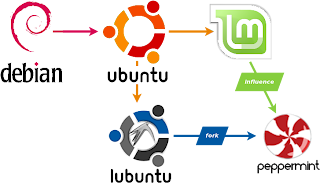
 
The roots of Peppermint

Regarding having a lean distro on the Ubuntu code base, some people pointed to Lubuntu, which was really starting to gain traction at the time, but I didn't always agree with their direction either. For instance I recall some messages from their mailing list regarding potentially changing from leafpad to gedit as the default text editor. They made the decision to stick with leafpad, a default LXDE component, which I didn't agree with from an ease of use standpoint. Little things like this also heavily impacted my decision to make another distro.

Tienie: With Linux having more than 5 desktop interfaces, why do you prefer the LXDE desktop interface?

Kendall: Three reasons really stick out: ease of use, how modular it is, and how lightweight it is. LXDE is incredibly simple to use, especially for new Linux users and this was one of the most major factors in the decision to use it. It does have some downsides in that some of the LXDE components aren't the most user friendly. The modular nature of LXDE really helps here as it's rather painless to simply use other things. The only two components of LXDE that really seem 100% necessary are pcmanfm and lxsession, everything else can be replaced and Peppermint takes advantage of this more than any other LXDE based distro that I'm presently aware of though I'm certain I haven't used them all. The fact that LXDE is also very lightweight certainly helps justify my decision to use it.

Tienie: What are your future plans for Peppermint?

Kendall: I can't give up too many details but I will say that we're looking into offering some of our own services designed to better integrate Peppermint with the cloud and assist people that use multiple computers.

I hope this has been helpful. Cheers.

Tienie: Thanks Kendall, that's great.


The testers:

Most of the testers didn't want to be interviewed, fortunately we have input from two of the testers.

Tester No 1

Tienie: Hi, can I call you by your forum nick, or can I use your real name?

Daniel: My name is Daniel Burke. I use a few different nicknames online, but I generally prefer people to know who I am. I am especially proud of my part in Peppermint 4, so feel free to use my real name.

Tienie: Please share with us your opinion on Peppermint 4 and the testing process.

As the art director for Peppermint, I was set up and testing long before a beta for '4 came out. Initially, I was using Peppermint 3 as a base to work and test. Eventually, enough came together, and a preliminary Alpha release was shared.

While others were working on different parts of the project, we all were multitasking in the same fashion; working on Peppermint 4 and scouring each release and update for anything we could fix or improve. In the early Alpha, there were a few things that sometimes gave a couple hiccups. We worked through them, and kept at it, until the Beta was put together.

Beta was a a little bit different in that we were trying to have it polished up enough for our private group of testers.

Even though I had been working on it, and had already seen pretty much all the different parts that were included, I was still kinda blown away by how nice it looked, and fit together. Beta was the point where it finally sunk in for me, that this was going to be something awesome.

After a couple updates to Beta, there really wasn't much "testing" for me to do. I'm not really much of a developer, or know much about coding, so forcing bugs out, and figuring out how/what causes them, isn't something I'm really good at. On top of that, there simply weren't that many bugs, and almost none of them affected my use.

In the later days of Beta, I was using the OS as my primary desktop. I did all my work in it, and personal use as well. Sometimes, I would almost forget that this wasn't a finished product. It worked, so I used it. Eventually, as work on '4 wound down, I was simply counting down the days until I could show it off to people.

I already knew that we were holding some things back from the beta testers, so that everyone could experience at least a little bit of "wow factor" when the final version came out, but some parts were still a surprise to me. I had heard talk of a new web site design, but didn't get a single glimpse at it until today (release day). I love it, and am really pleased with all of our work. When it's all said and done, I thank the rest of the team, our testers, and all the users out there. I'm just happy to be a part of it all.

If you have other questions or anything, please feel free to contact me. Thanks for the interview, and for all the other help along the way.

Tester No 2

Tienie: By some lucky coincidence, I also managed to be a tester for Peppermint 4. I saw that they were looking for testers on the Peppermint Facebook page and signed up. I don't think that I was chosen because of my technical skills, but rather because of my passion for Peppermint and spreading the word about it.

I've been using Linux on and off for years, I found it difficult to get into as I didn't have ADSL when I started with Mandrake 7 and later with Ubuntu Warty Warthog. 3G was very expensive at the time as well, which meant that I could not ask anyone for help. I was introduced to Peppermint by a friend, Quintin van Rooyen, who sent me a flash drive with a few Linux ISO's on it. He is very much into Linux and I found that inspiring. I cottoned on to Peppermint ICE, started a blog to keep track of what I had learnt (and something to look back at when I broke stuff or had to reinstall). Today my little blog has more than 6000 page views, around 16 a day and I try in my own little way to spread awareness of Peppermint.

I found the “test version” of Peppermint 4 to be very stable. Not many bugs were found and most of them were not serious. I was very impressed with the build quality of the test version.

After installing I tried to test everything I could, to see if it worked or was broken. I was the first tester to find out that GWoffice had a problem creating documents, it was a registered bug and Kendall decided to use Google Drive SSB instead. I was very happy to have found something small that did not work, it meant that I had done my job.

Final words


I hope that you have enjoyed this behind the scenes look into the world of Peppermint 4, the lightweight and stable, LXDE desktop Linux. Please feel free to leave a comment or two below.

Wednesday, May 29, 2013

My current Conky script

Because I love system monitors, I always go back to using Conky.

Here is my current Conky Script:


background yes
use_xft yes
xftfont Sans:size=8
xftalpha 1
update_interval 1.0
total_run_times 0
own_window yes
own_window_transparent yes
own_window_type normal
own_window_hints undecorated,below,sticky,skip_taskbar,skip_pager
double_buffer yes
minimum_size 200 700
maximum_width 400
draw_shades yes
draw_outline no
draw_borders no
draw_graph_borders yes
default_color white
default_shade_color black
default_outline_color white
alignment top_right
gap_x 12
gap_y 12
no_buffers yes
text_buffer_size 1024
uppercase no
cpu_avg_samples 2
override_utf8_locale no

TEXT
${font sans-serif:bold:size=8}SYSTEM ${hr 2}
${font sans-serif:normal:size=8}$sysname $kernel $alignr $machine
Host:$alignr$nodename
Uptime:$alignr$uptime
File System: $alignr${fs_type}

${font sans-serif:bold:size=8}PROCESSORS ${hr 2}
${font sans-serif:normal:size=8}${cpugraph cpu1}
CPU1: ${cpu cpu1}% ${cpubar cpu1}

${font sans-serif:bold:size=8}MEMORY ${hr 2}
${font sans-serif:normal:size=8}RAM $alignc $mem / $memmax $alignr $memperc%
$membar

${font sans-serif:bold:size=8}DISKS ${hr 2}
${font sans-serif:normal:size=8}/ $alignc ${fs_used /} / ${fs_size /} $alignr ${fs_used_perc /}%
${fs_bar /}
SWAP $alignc ${swap} / ${swapmax} $alignr ${swapperc}%
${swapbar}

${font sans-serif:bold:size=8}TOP PROCESSES ${hr 2}
${font sans-serif:normal:size=8}${top_mem name 1}${alignr}${top mem 1} %
${top_mem name 2}${alignr}${top mem 2} %
$font${top_mem name 3}${alignr}${top mem 3} %
$font${top_mem name 4}${alignr}${top mem 4} %
$font${top_mem name 5}${alignr}${top mem 5} %

${font sans-serif:bold:size=8}NETWORK ${hr 2}
${font sans-serif:normal:size=8}IP address: $alignr ${addr eth1}
ESSID: $alignr ${wireless_essid eth1}
${downspeedgraph eth1}
DLS:${downspeed eth1} kb/s $alignr total: ${totaldown eth1}
${upspeedgraph eth1}
ULS:${upspeed eth1} kb/s $alignr total: ${totalup eth1}

And here is a screenshot:


Thursday, April 4, 2013

Printing on Peppermint

This has been something new for me, because when my Epson photo print broke a few years ago I never bought a replacement. I printed at small copy shop and was very happy because I did not need a lot of prints.

Now I have a HP 1010 laser printer and wanted to share my getting started experience.

Plugged it in, Peppermint detected it and started downloading drivers. I printed a test page and all seemed well. Unfortunately it would not print from LibreOffice or Firefox. I searched the Peppermint forums and found a suggestion to print from a different program. So I tried the Document Viewer and was able to Print a PDF file.

When it does not print: The document is sent to the print que, and as far as the computer knows, it is printed. Which of course makes no sense to me as I am not a programmer.

I am investigating and will post an update as soon as I have found the answer.

Update: a reboot later my printing problems are over. Not sure what happened, but it's working.

Wednesday, February 23, 2011

Linux & Chromium: Multiple User Profiles

Creating a Different User profile in Chromium Browser on Linux

I have recently started to use a Linux Operating System (Peppermint Ice).
It came with Chromium pre-installed.

Now, on Windows, I use the Multiple User Profile trick to create more than one instance of Chrome.
This is very useful if you have other people using your computer.
Simply create a Profile for each user.

On Linux, using Chromium, it is not that simple.
I have searched, but I found no instructions on how to do it.

So, I messed around until I managed to do it.
(Disclaimer:  It seems to work, but use this at your own risk.)

Steps:
01.  )   Click "Menu".
02.  )   Go to "Internet".
03.  )   Right Click on "Chromium Web Browser".
04.  )   Click on "Add to Desktop".  (This will create a Browser Item on the Desktop.)
05.  )   Open your File Browser.
06.  )   Navigate to your Desktop.  (For me, it is "/home/lantere/Desktop")
07.  )   Make a Copy of that Browser Item.  (This is just for Safety.  You can skip it.)
08.  )   Open the Browser Item in Leafpad.  (Under "Accessories" in the "Menu".)
09.  )   Make the following Changes:
09.1)   Name=My Chromium Web Browser   (Give it whatever Name you want.)
09.2)   GenericName=My Web Browser   (Give it whatever Name you want.)
09.3)   Comment=Access My Internet   (Give it whatever Comment you want.)
09.4)   Exec=/usr/bin/chromium-browser %U --user-data-dir=/home/lantere/Documents/Test
09.5)   Save the Item and close Leafpad.

That's it.
Double Click your Modified Browser Item.
It *should* start with your New Profile.
(I have used the folder "Test" in my "Documents" as my new Profile.)


*NOTE:
Read this for Chrome installation in a Multi-User Environment.
Do this before you use the Multiple User Profile trick on Windows with Chrome.
http://www.google.com/support/chrome/bin/answer.py?hl=en&answer=118663